
WhatsApp Integration in Zendesk: What You Need to Know
For businesses today, WhatsApp is a preferred customer messaging channel, with millions choosing it over phone or email to get support. Integrating WhatsApp with Zendesk helps your team manage all customer conversations in one place, boosting responsiveness and customer satisfaction. Here’s a simple guide to how WhatsApp works in Zendesk, plus best practices and real-world tips.
Why Integrate WhatsApp with Zendesk?
- Customer Preference: Many customers like using WhatsApp to quickly message companies.
- Unified Support: All messages, from WhatsApp or other sources, become Zendesk tickets for easy tracking.
- Automation & AI: Zendesk bots and AI can help triage WhatsApp messages, speeding up routine responses.
For example, an e-commerce client saw a 28% increase in conversion rates after integrating WhatsApp via Zendesk, thanks to faster replies and better engagement.
How WhatsApp Works in Zendesk
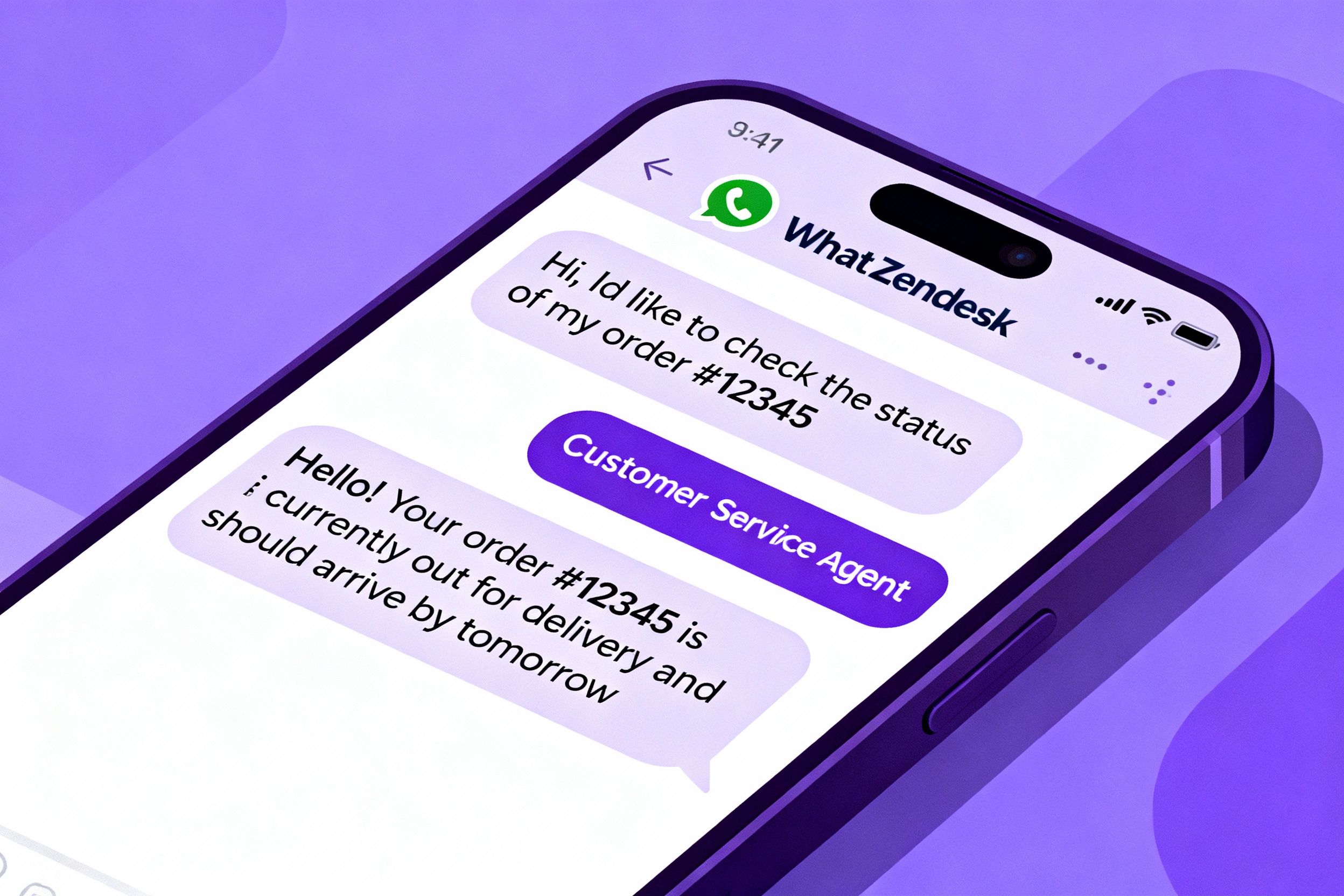
When a customer sends a WhatsApp message, it automatically becomes a ticket in Zendesk. Agents reply directly from Zendesk’s Agent Workspace without switching apps. This lets agents see past customer conversations from all channels in one feed, including images and videos.
WhatsApp is an "Unsessioned" Chat Channel
Unlike web chat, WhatsApp doesn’t have clear session starts or ends; all messages are part of one continuous conversation. This means:
- Bots don’t automatically send welcome messages unless specially configured.
- A customer’s first message is what triggers bot replies.
- You can use special WhatsApp links (called WAMI links) that pre-fill a message like “Hi” to activate bot flows.
Example: Instead of an automatic welcome, a WhatsApp bot waits for the user to say “Hello” or click a custom link before greeting. This helps avoid spamming customers [user info].
Best Practices for Setting Up WhatsApp in Zendesk
- Assign Bots per Number: You can add multiple WhatsApp numbers and assign different bots or agents to each, which is great for scaling support.
- Start Simple: Begin with human agent flows; add bots and automation as your team and customers get comfortable.
- Keep Bot Interactions Short: Simple greetings (“Hi, how can I help?”) work best to keep customers engaged without over-complicating.
- Monitor and Troubleshoot: Use Zendesk reporting views to track bot activity and fix issues like repeated bot prompts (“Are you there?”).
- Educate Your Team and Clients: Help everyone understand WhatsApp’s continuous conversation nature and bot triggers for smooth support.
Handling Reporting and Escalations
Zendesk allows you to see detailed ticket metrics from WhatsApp chats, helping measure agent and bot performance. If you encounter persistent technical issues, escalate them quickly through Zendesk support or Slack groups for prompt troubleshooting.
Real-World Example: Using Welcome Messages with WhatsApp Links
To create a friendly welcome experience, many companies use WAMI links that pre-load a greeting message. When customers click this link, the bot receives the trigger word and responds accordingly, starting a helpful conversation flow without waiting for the user to type anything [user info].
Final Thoughts
Integrating WhatsApp into Zendesk unlocks powerful, unified support but comes with unique channel dynamics like no session start and no auto greetings. By clearly assigning bots, keeping flows simple, educating your users, and proactively monitoring, you can provide efficient, seamless customer service—human or automated—all within Zendesk.
If you'd like help setting up WhatsApp integration or want best practices tailored to your business, feel free to contact your Zendesk support expert or CX Experts for guidance.
Comments
0 comments
Please sign in to leave a comment.